
Use the Setup options to set up and adjust WiFi, printer setup and selection, email settings, user information, default language, display settings, sounds settings, BMIS login information, shop information, user management, connected accessories, and device information.
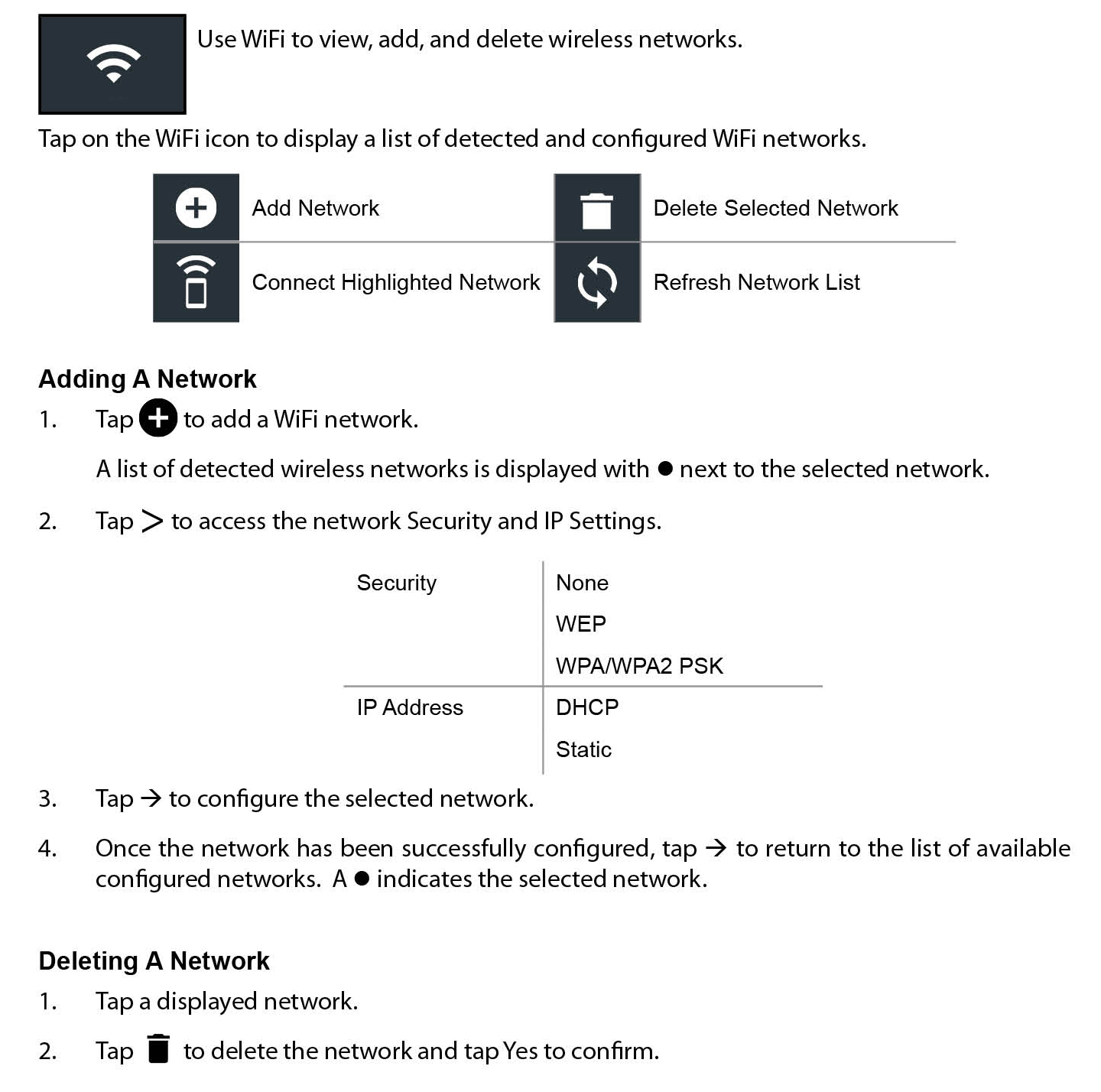
WiFi Settings
Printer Settings

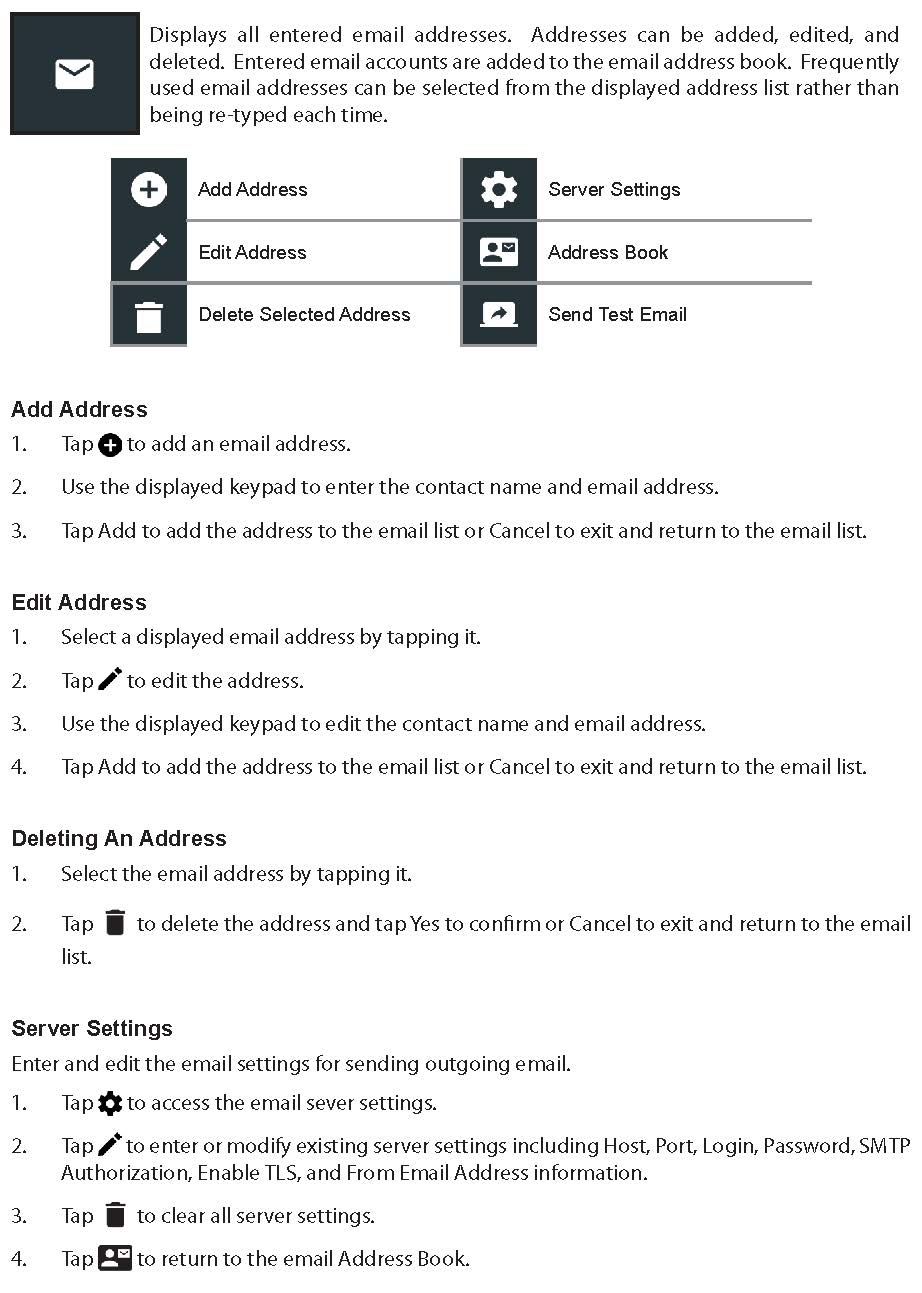
Email Settings
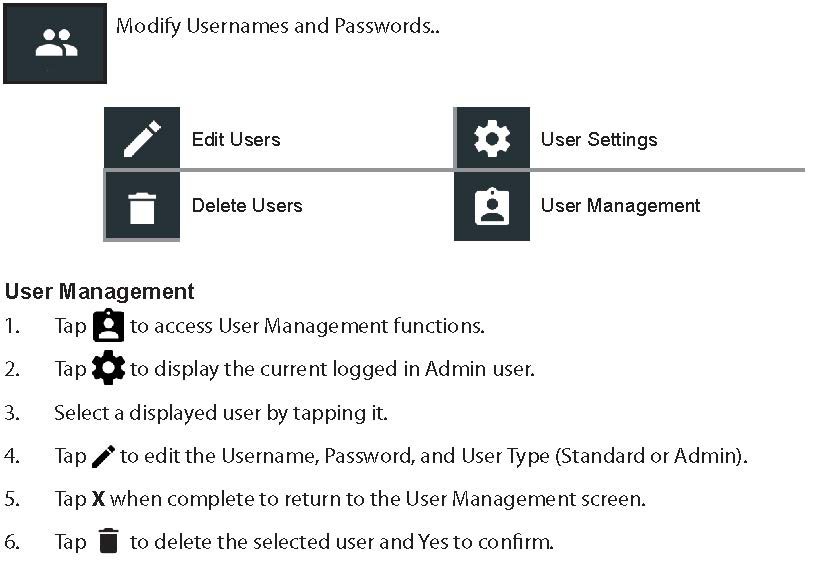
User Settings
Language Settings

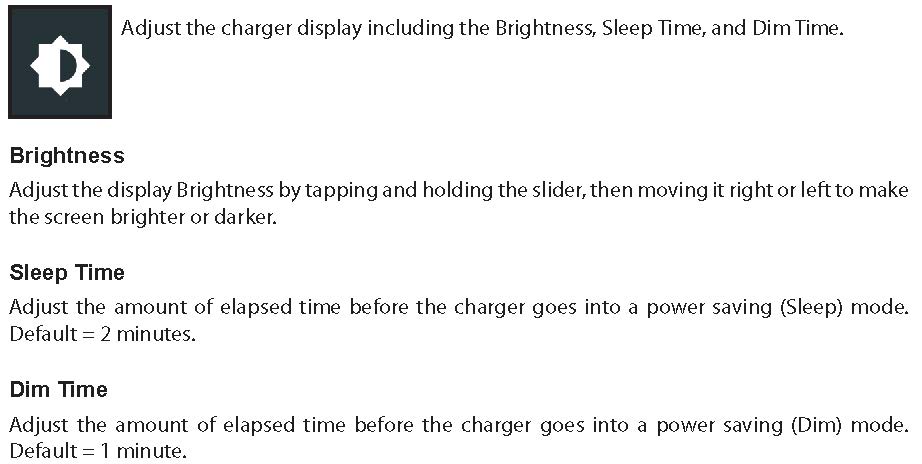
Display Settings
BMIS Login
IMPORTANT: If no WiFi connection has been made, follow the “Adding a Network” procedure described in the WiFi settings section above (first topic).
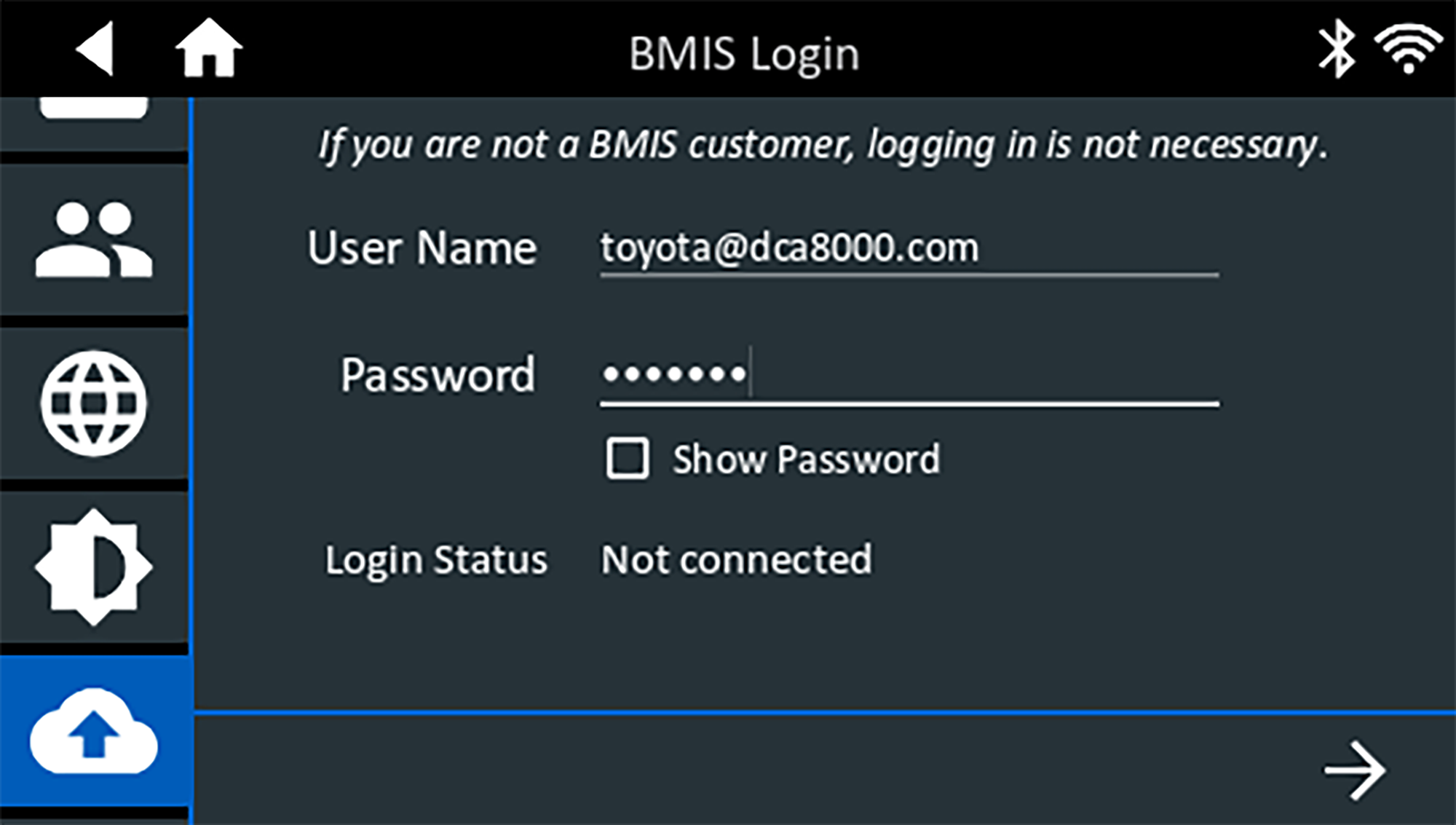
1. Press → to download the list of BMIS locations.
2. Enter the Dealer/Store ID# or location information. The selected dealer information is displayed.
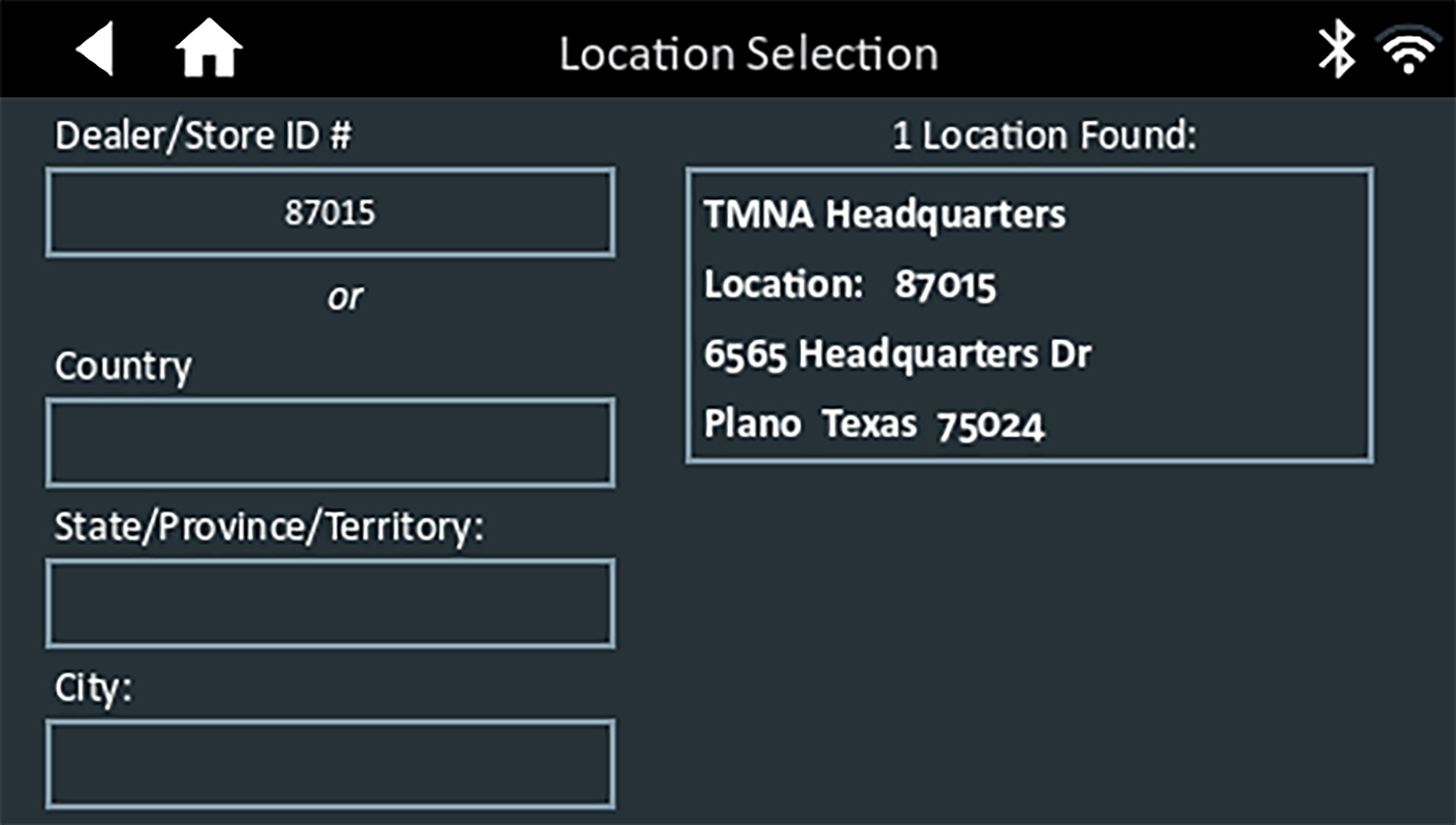
3. Tap on a displayed location to connect the charger to an existing BMIS account.
Shop Information
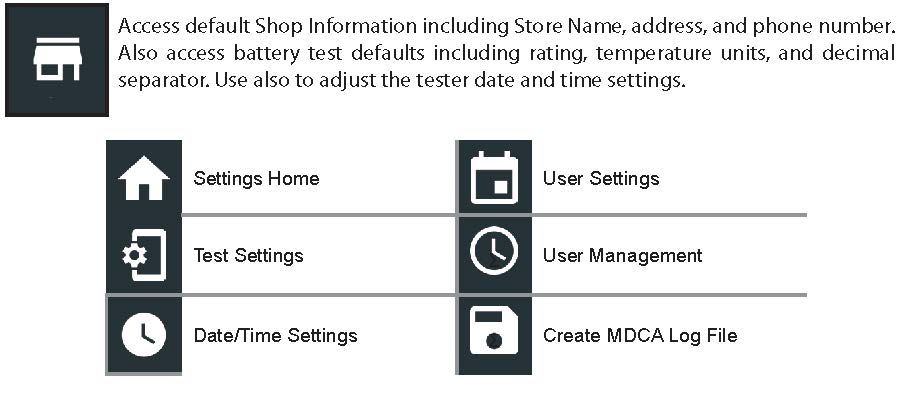
Shop Information
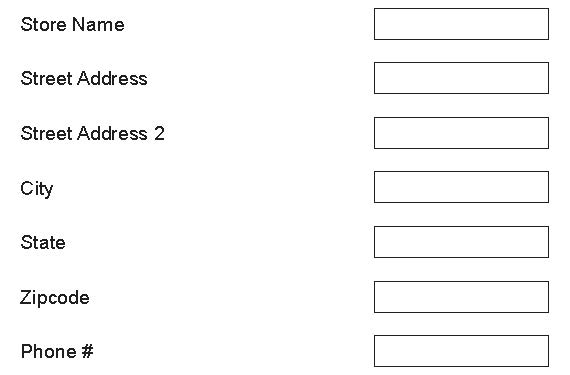
Use the onscreen keypad to enter the dealer/store name, address and phone number.
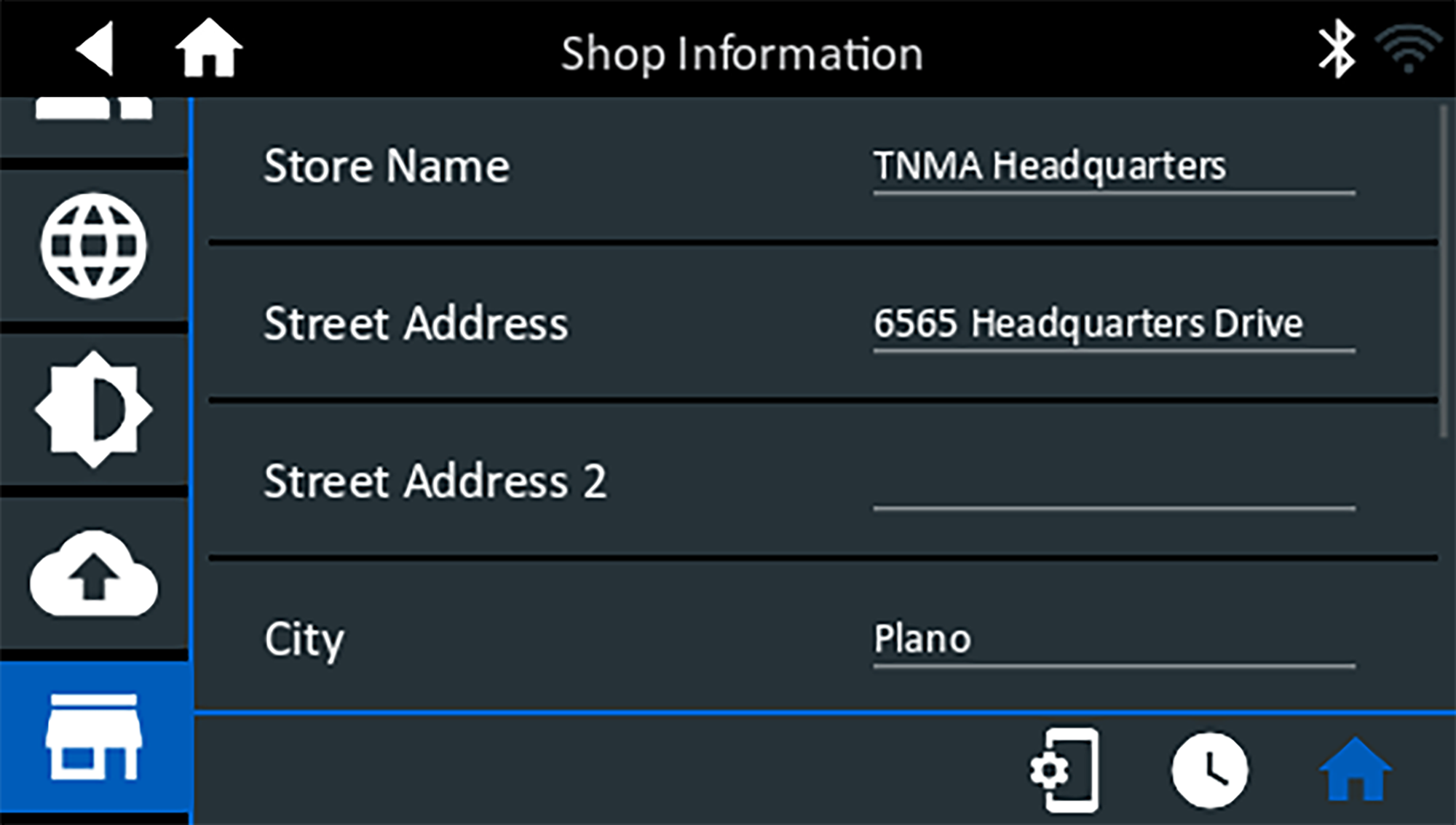
Test Settings
1. Tap

to access the test setting defaults. Tap the boxes or icons to change the values.
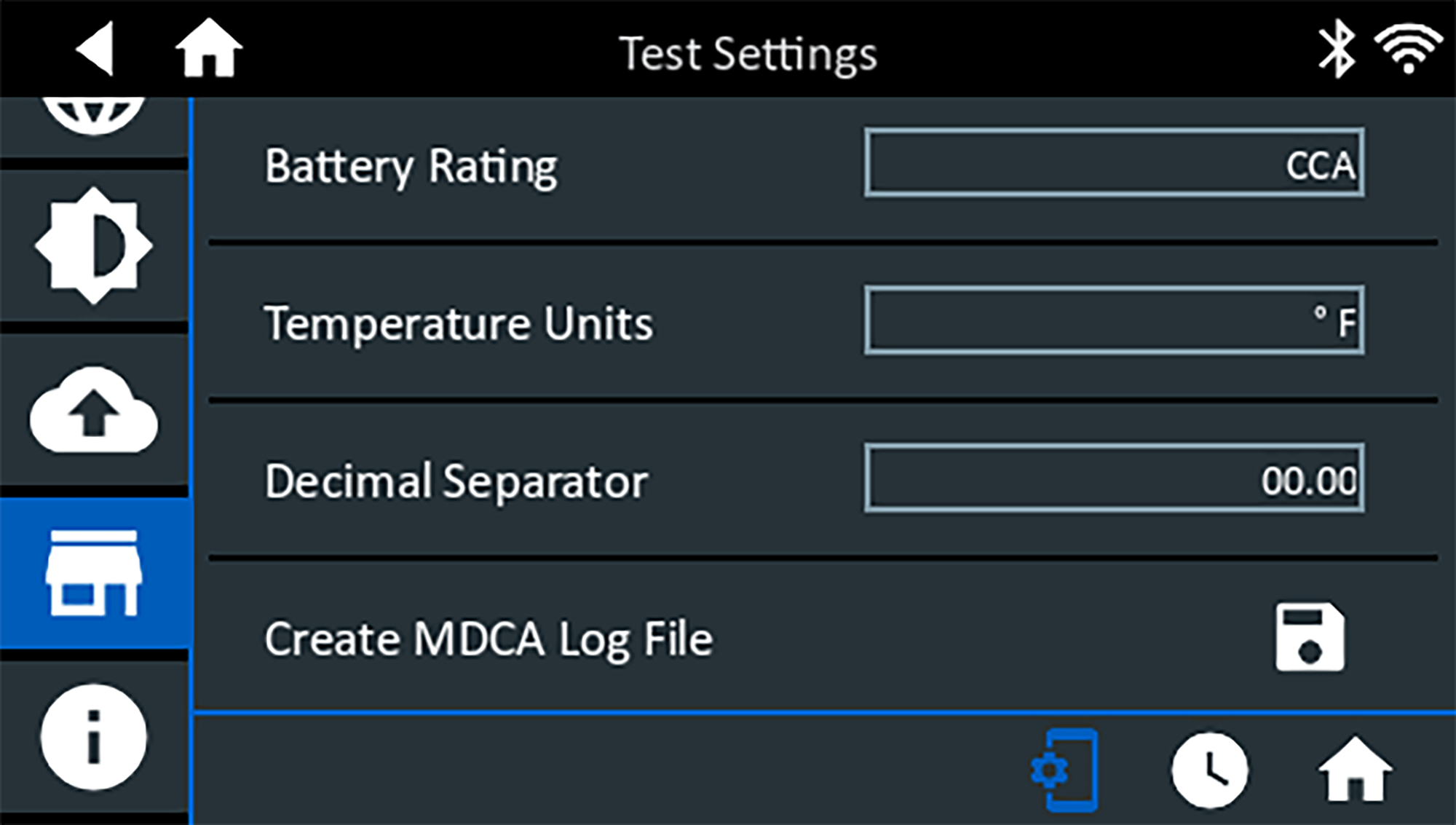
Battery Rating: Default battery rating units used when testing batteries.
Temperature Units: Default temperature units used when measuring battery temperature.
Decimal Separator: Default number display using commas or periods separators.
Create MDCA Log File: The MDCA function is used by Midtronics Technical Support.
2. Tap

to return to the Shop Information screen.
Date / Time Settings
1. Tap

to access the Date / Time setting defaults.
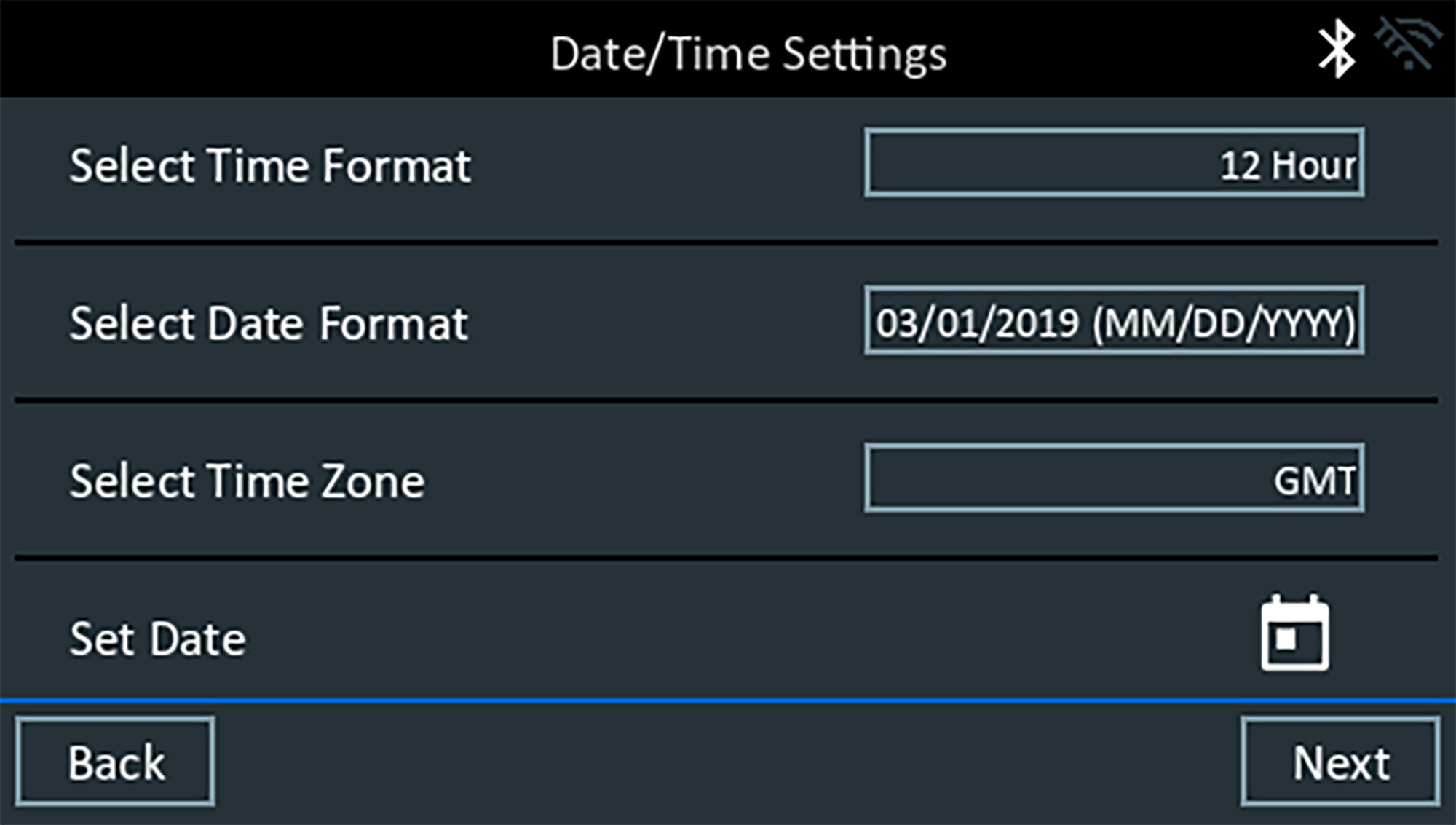
Select Time Format: 12-Hour or 24-Hour Format
Select Date Format: Month/Day/Year, Day/Month/Year, or Year/Day/Month
Select Time Zone: Time zone in which the charger will be operated
Set Date: Use the Up and Down arrows to enter the month, day, and year. Tap Set to save the date or Cancel to exit without saving.

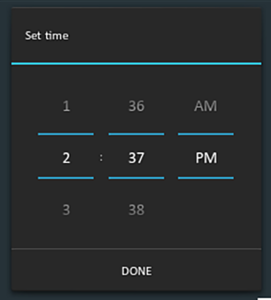
Set Time: Use the Up and Down arrows to enter the hours, minutes, and AM/PM. Tap Set to save the time or Cancel to exit without saving.
2. Tap
to return to the Shop Information screen.